Community Server

  • Subscribe to our RSS feed.
  • Twitter
  • StumbleUpon
  • Reddit
  • Facebook
  • Digg

Wednesday, 10 April 2013

Advanced routing in Pentaho Kettle jobs

Posted on 11:39 by Unknown

In this article we will take a look at how to create some complex routing conditions for a Pentaho Data Integration (Kettle) job.


Out-of-the-box Kettle comes already with several easy to use conditional job entries:
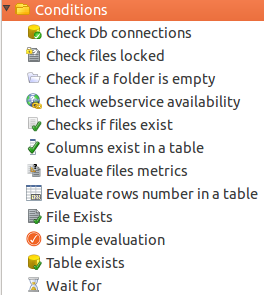
In some situations though you might need a bit a bit more flexibility, this is when the JavaScript job entry comes into play:
This one is found in the Scripting folder. The name used in the configuration dialog of this particular step is from my point of view better actually better suited: Evaluating JavaScript.

We will look at a very trivial example:
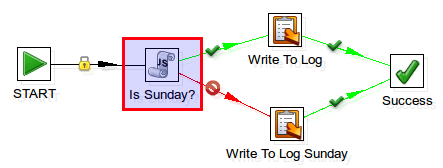
In this job flow we only want to execute the Write To Log Sunday job entry if the day of the week is a Sunday. On all other days we want to execute the job entry Write to Log.

The Evaluating JavaScript job entry is configured as shown in the screenshot below:
Note that you can write multiple lines of code, but you must make sure that the return value is a boolean value!

In case you want to create this example yourself, please find below the JavaScript code:
var d = new Date();
var dof = d.getDay();
dof == 6 ? true : false;

Running this ETL process on a Wednesday will show the following in the log:

As you see it is rather simple creating more complex conditions and the bonus is that you can make use of a scripting language which you probably already know: JavaScript.

More information about this job entry can be found on the Pentaho Wiki.

You can download the sample job file from here. This file was created in PDI 4.4 stable, which means that you should only open it in PDI 4.4 or newer.
Read More
Posted in ETL, Pentaho Data Integration, Routing | No comments

Wednesday, 20 March 2013

Partitioning data on clustered Pentaho Kettle ETL transformations

Posted on 08:38 by Unknown

This is the second article on clustering ETL transformations with Pentaho Kettle (Pentaho Data Integration). It is highly recommended that you read the first article Creating a clustered transformation in Pentaho Kettle before continuing with this one. Make sure that the slave and master servers are running and the cluster schema is defined - as outlined in the first article.

Prerequisites:

  • Current version of PDI installed.
  • Download the sample transformations from here.

How to create a partitioning schema

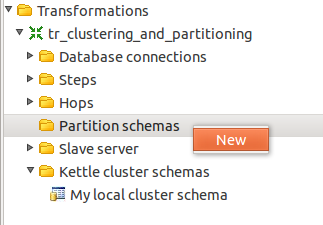
Create a new transformation (or open an existing one). Click on the View tab on the left hand side and right click on Partition schemas. Choose New:
In our case we want to define a dynamic schema. Tick Dynamically create the schema definition and set the Number of partitions by slave server to 1:

How to assign the partition schema

Right click on the step that you want to assign the partition schema to and choose Partitioning.
You will be given following options:
For our purposes we want to choose Remainder of division. In the next dialog choose the partitioning schema you created earlier on:
Next specify which field should be used for partitioning. In our case this is the city field:
That’s it. Now partitioning will be dynamically applied to this step.

Why apply data partitioning on distributed ETL transformation?

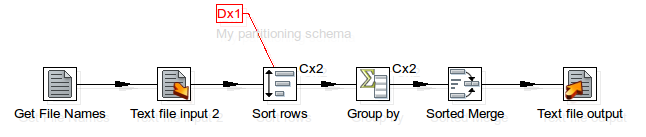
As we have 2 slave servers running (setup instructions can be find in the first article), the data will be dynamically partitioned into 2 sets based on the city field. So even if we do an aggregation on the slave servers, we will derive a clean output set on the server. To be more precise: If we don’t use partitioning in our transformation, each slave server would received data in a round robin fashion (randomly), so each data set could contain records for New York in example. Each slave creates an aggregate and when we combine the data on the master we can possibly end up we two aggregates for New York. This would then require an additional sort and aggregation step on the master to arrive at a final clean aggregate. To avoid this kind of scenario, it is best to define data partitioning, so that each slave server receives a “unique” set of data. Note, this is just one reason why you should apply partitioning.

No partitioning schema applied:
With partitioning schema applied:
Notice the difference between the two output datasets!

Also note the additional red icon [Dx1] in the above screenshot of the transformation. This indicates that a partitioning schema is applied to this particular step.

At the end of this second article I hope that you got a good overview of the Pentaho Kettle clustering and partitioning features which are very useful when you are dealing with a lot of data. My special thanks go to Matt and Slawo for shedding some light into this very interesting functionality.
Read More
Posted in | No comments

Creating a clustered transformation in Pentaho Kettle

Posted on 02:54 by Unknown

Prerequisites:


  • Current version of PDI installed.
  • Download the sample transformations from here.


Navigate to the PDI root directory. Let’s start three local carte instances for testing (Make sure these ports are not in use beforehand):

sh carte.sh localhost 8077

sh carte.sh localhost 8078
sh carte.sh localhost 8079

In PDI Spoon create a new transformation.

Click on the View tab on the left hand side and right click on Slave server and choose New. Add the Carte servers we started earlier on one by one and define one as the slave server. Note the default carte user is cluster and the default password is cluster.
Next right click on Kettle cluster schemas and choose New.
Provide a Schema name  and then click on Select slave servers. Mark all of them in the pop-up window and select OK.
Next we want to make sure that Kettle can connect to all of the carte servers. Right click on the cluster schema you just created and choose Monitor all slave servers:
For each of the servers Spoon will open a monitoring tab/window. Check the log in each monitoring window for error messages. 

Additional info: Dynamic clusters
If the slave servers are not all known upfront, can be added or removed at any time,  Kettle offers as well a dynamic cluster schema. A typical use case is when running a cluster in the cloud. With this option you can also define several slave servers for failover purposes. Take a look at the details on the Pentaho Wiki.

If Kettle can connect to all of them without problems, proceed as follows:

How to define clustering for a step

Add a Text input step for example.
Right click on the Text input step and choose Clustering.
In the Cluster schema dialog choose the cluster schema you created earlier on:
Click OK.
Note that the Text input step has a clustering indicator now:
Note: Only the steps that you assign the cluster schema this way will be run on the slave servers. All other ones will be run on the master server.

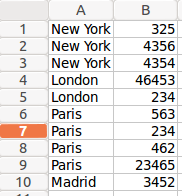
Our input dataset:

Creating swimlanes

In this example we will be reading the CSV files directly from the slave servers. All the steps will be executed on the slaves (as indicated by the Cx2). 

To run the transformation on our local test environment, click the execute button and choose Execute clustered:

The last option Show transformations is not necessary for running the transformation, but helps to understand how Kettle creates individual transformations for your slave servers and master server in the background.

As we test this locally, the results will be read from the same file twice (we have two slave servers running locally and one master server) and will be output to the same file, hence we see the summary twice in the same file:


Debugging: Observer the logs of the slave and master servers as the main transformation log in Spoon (v4.4) doesn’t seem to provide you an error logs/messages in clustered execution. So always monitor the server logs while debugging!
Preview: If you perform preview on a step, a standard (non-clustered) transformation will be run.


Summarizing all data on the master

Now we will change the transformation so that the last 3 steps run on the master (notice that these steps do not have a clustering indicator):
If we execute the transformation now, the result looks like this:
So as we expect, all the data from all the slaves is summarized on the master.

Importing data from the master

Not in all cases will the input data reside on the slave servers, hence we will explore a way to input the data from the master:

Note that in this case only the Dummy step runs on the slave server.

Here is the output file:
So what happens is that the file will be input the data on the master, records will be distributed to the dummy steps running on the slave server and then aggregated on the master again.

My special thanks go to Matt and Slawo for shedding some light into this very interesting functionality.

Read More
Posted in Clustered transformation, Pentaho Data Integration, Pentaho Kettle | No comments

Thursday, 7 March 2013

Pentaho Kettle (PDI): Get Pan and Kitchen Exit Code

Posted on 14:26 by Unknown
Various monitoring applications require the exit code/status of a process as an input.

A simple example (test1.sh):

#!/bin/bash
echo "Hi"
exit $?

Let’s run it:
$ ./test1.sh
Let’s check the exit status (of the last command) which can be accessed via $?:
$ echo $?
0

Let’s take a look at how we can get the exit status from Pan and Kitchen:

For demonstration purposes we create a very simple dummy transformation which just outputs some data to the log:
Now create a shell file:
#!/bin/bash
/opt/pentaho/pdi/pdi-ce-4.4.0-stable/pan.sh -file='/home/dsteiner/Dropbox/pentaho/Examples/PDI/exit_code/tr_dummy.ktr' -Level=Basic > /home/dsteiner/Dropbox/pentaho/Examples/PDI/exit_code/err.log
echo $?

Note the echo $? in the last line which will return the exit status. This is for demonstration purposes here only. Normally you would use exit $? instead.

On Windows use instead:
echo %ERRORLEVEL%

Now lets run the shell script:
The exit status tells us that the transformation was executed successfully.

Next we will introduce an error into the transformation. I just add a formula step with a wrong formula:
We run the shell script again and this time we get a return code other than 0:
Any return code other than 0 means it is an error.

Please find below an overview of all the return codes (src1, src2):

Error Code
Description
0
The job ran without a problem
1
Errors occurred during processing
2
An unexpected error occurred during loading / running of the job / transformation, an error in the XML format, reading the file, problems with the repository connection, ...
3
unable to connect to a database, open a file or other initialization error.
7
The job / transformation couldn't be loaded from XML or the Repository
8
Error loading job entries or steps or plugins (error in loading one of the plugins mostly).one of the plugins in the plugins/ folder is not written correctly or is incompatible. You should never see this anymore though. If you do it's going to be an installation problem with Kettle.
9
Command line usage printing

Read More
Posted in Pentaho Data Integration, Pentaho Kettle | No comments

Sunday, 3 February 2013

Mondrian: Consequences of not defining an All member

Posted on 10:40 by Unknown
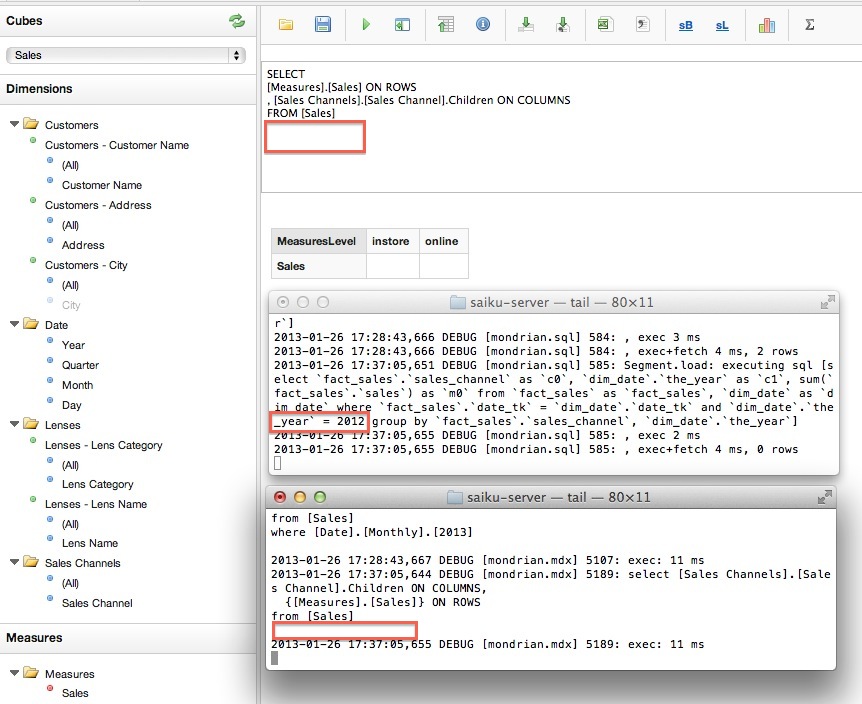
To come straight to the point: If you do not define an all member for a hierarchy Mondrian will implicitly create a slicer with the default member of the dimension … this is even happening if you do not mention the dimension at all in your MDX query!

In example take following MDX:
SELECT
[Measures].[Sales] ON 0,
[Sales Channels].[Sales Channel].Children ON 1
FROM
[Sales]

If we take a look at the SQL that Mondrian generates, we suddenly see that it tries to restrict on the year 2012 in the join condition:


Why is this happening? The reason lies in the fact that one of the hierarchies of the date dimension does not have an All member. So Mondrian tries to find the first member of this hierarchy (as this is the default member), which happens to be [Year]. And as in this case I only had data as of the year 2012 in the date dimension table, it was used in the join.

<Hierarchies>
<Hierarchy name="Time" hasAll="false">
<Level attribute="Year" />
<Level attribute="Quarter" />
<Level attribute="Month" />
<Level attribute="Day"/>
</Hierarchy>
<Hierarchy name="Weekly" hasAll="true">
<Level attribute="Year" />
<Level attribute="Week"/>
<Level attribute="Weekday"/>
</Hierarchy>
</Hierarchies>


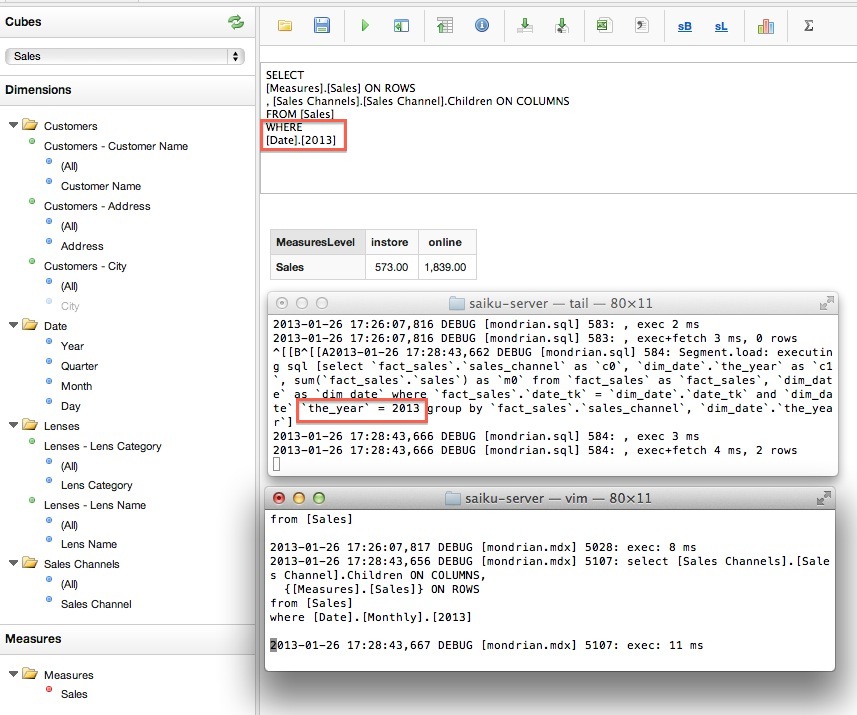
Note if we use a hierarchy of the Date dimension in the MDX then everything works as expected:


So it is really important to keep in mind what consequences not defining an All member has!
Read More
Posted in JasperSoft, Mondrian, multidimensional modeling, OLAP, Pentaho, Saiku | No comments

Monday, 21 January 2013

Creating a federated data service with Pentaho Kettle

Posted on 03:26 by Unknown

Creating a federated data service with Pentaho Kettle

Prerequisite


  • Kettle (PDI) 5: download here [Not for production use]
  • You are familiar with Pentaho Kettle (PDI)
  • You are familiar with the Linux command line

What is the goal?

We have data sitting around in various disparate databases, files, etc. By creating a simple Kettle transformation which joins all these data together, we can provide a data service to various applications via a JDBC connection. This way, the application does not have to implement any logic on how to deal with all these disparate data sources, but instead only connect to the one Kettle data source. These applications can send standard SQL statements to our data service (with some restrictions), which in turn will retrieve the data from all the various disconnected data sources, join them together and return a result set.
This Kettle feature is fairly new and still in development, but it holds a lot of potential.

Configure the Kettle transformation

I created a very simple transformation which gets some stock data about lenses with prices in GBP (For simplicity sake I use a Data Grid step. In real world scenarios this would be a Database Input step). We get the current conversion rate from a web service and use this rate to convert our GBP prices to EUR. The transformation looks like this:


You can download the transformation from here.

Note the yellow database icon on the top right hand corner of the Output (Select Values) step. This indicates that this step is used as Service step. This can be configured in the Transformation Properties by pressing CTRL+T:


You also have the option to catch the service data in the local memory.

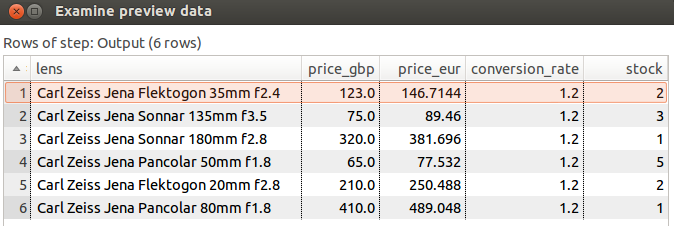
Perform a preview on the last step (named Output):


This is basically the dataset which we want to be able to query from other applications.

Configure Carte

If you don’t already have a configuration file in the PDI root directory, create one:

vi carte-config.xml

And paste this xml in there (please adjust the path to the ktr file):
<slave_config>  
 <slaveserver>    
   <name>slave1</name>    
   <hostname>localhost</hostname>    
   <port>8082</port>    
 </slaveserver>  

 <services>  
   <service>    
     <name>lensStock</name>     
     <filename>/home/dsteiner/Dropbox/pentaho/Examples/PDI/data_services/lens_stock.ktr</filename>     
     <service_step>Output</service_step>   
   </service>
 </services>
</slave_config>

Save and close.
Let’s start the server now passing the config file as the only argument:
sh carte.sh carte-config.xml

Query service data from an application

Once the server has started successfully, you can access the service by any client of your choice as long as they support JDBC. Examples of clients are Mondrian, Squirrel, Pentaho Report Designer, Jaspersoft iReport, BIRT, and many many more.

For simplicity sake, we will just query the data service directly from Kettle:
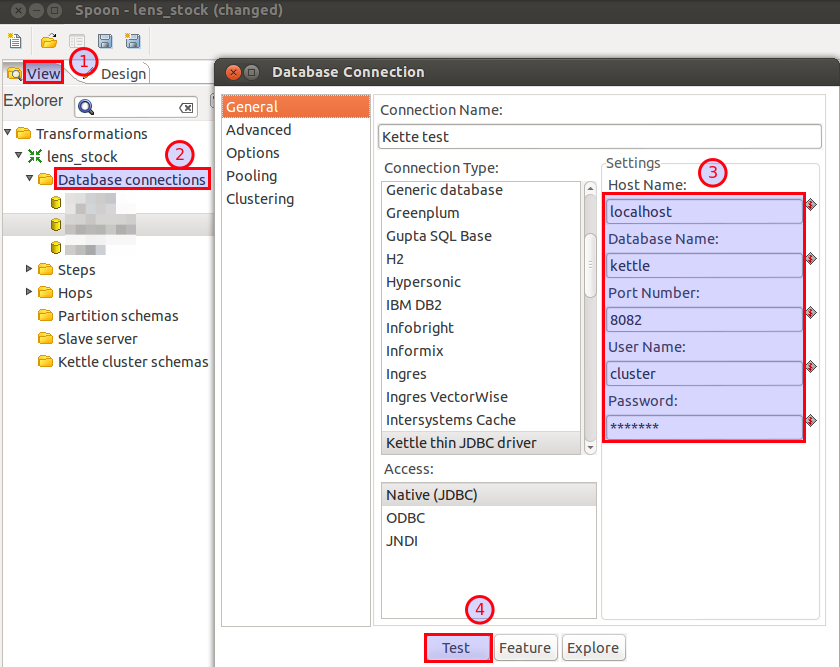
  1. Click on the View tab.
  2. Right click on Database Connections and choose New Connection Wizard.
  3. Enter the following details:
DriverKettle Thin JDBC Driver (org.pentaho.di.core.jdbc.ThinDriver)
Hostnamelocalhost
Databasekettle
Port8082
Usernamecluster
Passwordcluster


Then click the Test button. Kettle should be able to successfully connect to our data service.


Finally, click OK.

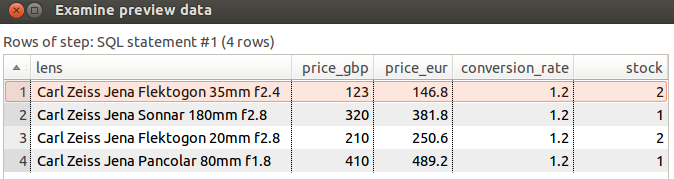
Next we just want to execute a simple SQL query. In the View tab, in Database connections, right click on the connection name you just created and choose SQL Editor and insert the following query and click execute:

SELECT * FROM lensStock WHERE price_gbp > 100

Note that the table name is the service name that we configured earlier on in the carte-config.xml.
The returned dataset will look like this:


Some other applications ask for a JDBC connection string, which looks like this:
jdbc:pdi://<hostname>:<port>/kettle

Further Reading

You can find a lot more detailed info on the Pentaho Wiki.
Read More
Posted in Federated database, Pentaho, Pentaho Kettle | No comments
Newer Posts Older Posts Home
Subscribe to: Posts (Atom)

Popular Posts

  • Pentaho Data Integration: Remote execution with Carte
    Pentaho Data Integration: Remote execution with Carte Tutorial Details Software: PDI/Kettle 4.1 (download  here ), installed on your PC and ...
  • Pentaho Data Integration: Scheduling and command line arguments
    Pentaho Data Integration (Kettle): Command line arguments and scheduling Tutorial Details Software: PDI/Kettle 4.1 (download here ), MySQL S...
  • Pentaho PostgreSQL Bulk Loader: How to fix a Unicode error
    When using the Pentaho PostgreSQL Bulk Loader step, you might come across following error message in the log: INFO  26-08 13:04:07,005 - Po...
  • Pentaho Data Integration: Best practice solutions for working wit
    Pentaho Data Integration: Best practice solutions for working with huge data sets Assign enough memory Open pan.sh and kitchen.sh (and spo...
  • Using Parameters in Pentaho Report Designer
    Using Parameters in Pentaho Report Designer Introduction How to define a parameter Additional info about the new parameter dialog Hidden Par...
  • PDI: Full Outer Joins
    Pentaho Data Integration: Full Outer Joins Creating full outer joins in Pentaho Data Integartion (PDI aka Kettle) is a fairly straight forwa...
  • Pentaho Data Integration and Infinidb Series: Bulk Upload
    Pentaho Data Integration and InfiniDB Series: Bulk Upload Introduction Prepare Tables Using mainly Kettle steps Check if file exists Setup I...
  • Pentaho Kettle Parameters and Variables: Tips and Tricks
    Pentaho Kettle Parameters and Variables: Tips and Tricks This blog post is not intended to be a formal introduction to using parameters and ...
  • Using regular expressions with Pentah...
    Using regular expressions with Pentaho Data Integration (Kettle) There are quite some transformations steps that allow you to work with regu...
  • Pentaho Data Integration: Designing a highly available scalable s
    Pentaho Data Integration: Designing a highly available scalable solution for processing files Tutorial Details Software : PDI/Kettle 4.1 (do...

Categories

  • "Bulk Loader"
  • "Bulk Loading"
  • "Hadoop"
  • "Kettle"
  • "Pentaho Book"
  • "Pentaho Data Integration"
  • "Pentaho Kettle"
  • "Pentaho Report Designer MDX MQL JDBC Parameters How To"
  • "Pentaho Report Designer MDX Parameters"
  • "Pentaho Report Designer MQL Parameters"
  • "Pentaho Report Designer Parmaters"
  • "Pentaho Report Designer"
  • "Pentaho Reporting 3.5 for Java Developers"
  • "Pentaho Reporting Book"
  • "Routing"
  • "Schema Workbench"
  • "Testing"
  • "Unicode"
  • "Unit testing"
  • "UTF8"
  • Agile development
  • automated testing
  • Big Data
  • Book Review
  • C-Tools
  • CBF
  • Clustered transformation
  • Command Line Arguments
  • Community Build Framework
  • D3JS
  • Dashboarding
  • Data Integration
  • Data Warehouse
  • Database Change Management
  • Database Version Control
  • Date Dimension
  • DBFit
  • ETL
  • ETLFit
  • Federated database
  • Google Charts
  • Google Visualization API
  • Hadoop
  • HTML5
  • iReport
  • JasperReports
  • JasperSoft
  • JasperStudio
  • Kettle
  • Kimball
  • Loop
  • Master data management
  • Metadata
  • Metedata editor
  • Mondrian
  • multidimensional modeling
  • OLAP
  • Open Source
  • Parameter
  • Parameters
  • Pentaho
  • Pentaho BI Server
  • Pentaho Data Integration
  • Pentaho Data Integration 4 Cookbook
  • Pentaho Kettle
  • Pentaho Metadata Editor Tutorial
  • Pentaho Report Designer
  • PostgreSQL
  • PRD
  • Report Layout
  • REST
  • Routing
  • Saiku
  • Scheduling
  • Slowly Changing Dimension
  • Sqitch
  • SVG
  • Talend
  • Talend MDM
  • Talend Open Studio
  • Tutorial
  • Variable
  • Web service
  • Xactions

Blog Archive

  • ▼  2013 (24)
    • ▼  December (2)
      • Pentaho 5.0 Reporting by Example: Beginner’s Guide...
      • Going Agile: Test your Pentaho ETL transformations...
    • ►  November (3)
    • ►  October (2)
    • ►  September (1)
    • ►  August (3)
    • ►  July (2)
    • ►  June (1)
    • ►  May (2)
    • ►  April (1)
    • ►  March (3)
    • ►  February (1)
    • ►  January (3)
  • ►  2012 (20)
    • ►  November (3)
    • ►  October (3)
    • ►  August (1)
    • ►  June (1)
    • ►  April (1)
    • ►  March (3)
    • ►  February (5)
    • ►  January (3)
  • ►  2011 (19)
    • ►  November (3)
    • ►  July (2)
    • ►  June (1)
    • ►  May (4)
    • ►  April (2)
    • ►  March (1)
    • ►  February (3)
    • ►  January (3)
  • ►  2010 (17)
    • ►  December (1)
    • ►  November (6)
    • ►  September (1)
    • ►  August (1)
    • ►  June (2)
    • ►  May (1)
    • ►  April (3)
    • ►  February (1)
    • ►  January (1)
  • ►  2009 (18)
    • ►  December (3)
    • ►  November (1)
    • ►  October (5)
    • ►  September (7)
    • ►  July (2)
Powered by Blogger.

About Me

Unknown
View my complete profile