Community Server

  • Subscribe to our RSS feed.
  • Twitter
  • StumbleUpon
  • Reddit
  • Facebook
  • Digg
Showing posts with label "Pentaho Report Designer". Show all posts

Friday, 24 May 2013

Pentaho Report Designer: How to show the parameter display name in your report when it is different from the parameter value

Posted on 10:47 by Unknown
One of my blog's readers just asked me quite an interesting question: How can I show the parameter display name in my Pentaho report if it is different from the parameter value?


Note: Just to clarify, the scenario covered here is when the parameter value and display name are different. So in example when you set the parameter value on an id field and the name on the descriptive field. Because if parameter value and display name are set to the same field, then you can simply drag and drop the parameter name onto your report.


So in our case we defined a parameter called PARAM_OFFICECODE. We set the Parameter Value to OFFICECODE (which happens to be an id) and the Parameter Display Name is set to CITY. We want to use the OFFICECODE to constrain the result set of our main report query (in our case this works better because there happens to be an index on this database table column).

In the report we would like to show in the header the selected office name (CITY) ... but how do we do this? We can not just simply drag and drop the PARAM_OFFICECODE element onto the report header, because it would only display the id (OFFICECODE) and not the display name (CITY).

You might think there should be an easy solution to this … and right you are. It’s just not as easy as it could be, but quite close …


So I quickly put together a bare bone example (don’t expect any fancy report layout … we just want to see if we can solve this problem):


Our parameter:
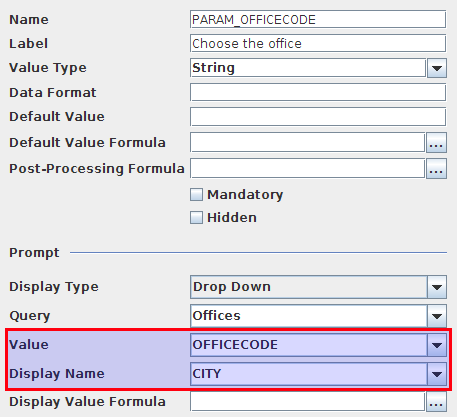
So if we placed this parameter element on the main report, we would just see the OFFICECODE when we ran the report. So how do we get the display name?


  1. If it is possible to access the name field (in our case CITY) via the SQL query, we could change our main report SQL query and add it there as a new field. But this is not very efficient, right?
  2. We could create a new query which takes the code/id (in our case OFFICECODE) as a parameter and returns the name (CITY) and then run this query in a sub-report which could return the value to the main report (this is in fact what you had to do some years back). Well, not that neat either.
  3. Here comes the savior: The SINGLEVALUEQUERY formula function. You can find this one in the Open Formula section. Thomas posted some interesting details about it on his blog some time ago.


Basically for a very long time we had the restriction that we could only run one query to feed data to our report. With the SINGLEVALUEQUERY and MULTIVALUEQUERY formula functions you can run additional queries and return values to the main report.


So here we go … to retrieve the display value:
  1. We create an additional query called ds_office_chosen which is constrained by the code/id and returns the (display) name: SELECT city AS office_chosen FROM offices WHERE officecode = ${param_officecode}
  2. We create a new formula element called formula_office_chosen and reference the query ds_office_chosen: =SINGLEVALUEQUERY("ds_office_chosen")
  3. We can now use formula_office_chosen in our report:
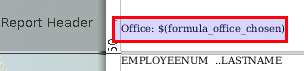

Once this is set up, we can run the report and the display name of the chosen parameter value will be shown:
My very simple sample report can be downloaded from here.
Read More
Posted in "Pentaho Report Designer", Parameters | No comments

Tuesday, 28 September 2010

Mondrian MDX and Schema Validation Difference PDR and Schema Workbench

Posted on 05:47 by Unknown
PDR 3.6.1 doesn't seem to behave the same way in processing MDX queries and XML Schemas than other tools (Schema Workbench, JPivot, etc). 


In example, CurrentDateMember([Date.Weekly Calendar], '[yyyy]\.[ww]').Lag(3.0) works perfectly in Schema Workbench, but not in PDR. PDR requires a more accurate writing style: CurrentDateMember([Date.Weekly Calendar], '["Date.Weekly Calendar"]\.[yyyy]\.[ww]').Lag(3.0). So whereas Schema Workbench and JPivot can figure out where to find year and week, PDR needs the exact path.


Another example: The formula of a calculated member looks like this in the Schema: [Subscription Base Revenue Share Deals (Actual)]/[Subscription Base (Actual)]. If you use JPivot or Schema Workbench, everything will work perfectly. But PDR requires the formula to be like this: [Measures].[Subscription Base Revenue Share Deals (Actual)]/[Measures].[Subscription Base (Actual)]. 

For both example, the syntax that PDR requires is the really accurate one. I would really appreciate if Schema Workbench (version 3.2.0.13661) would have the same strict validation as well. This would avoid a lot of confusion as to why we get so many more error messages in PDR.

When discussing this topic on the Mondrian developer mailing list, Julian Hyde commented the following:
"It looks like PRD is using mondrian to validate formulas. I suspect that it is an earlier version of Mondrian, which had weaker validation rules. I don't recall why we made the change, but people will log bugs that MDX succeeds in SSAS and fails in mondrian, and we will (rightly) change mondrian.
Qualifying members with their dimension & hierarchy name is recommended. Mondrian can resolve members faster if you do.
We can't give an error if people don't qualify member names. But should we emit a warning if someone writes [Store Sales] / [Store Cost] in a formula? I don't have a strong opinion either way."

As Thomas pointed out in the comment below, have a look at the mondrian.properties file located in the PDR folder report-designer\resources. You can find various settings there like this one:

mondrian.olap.elements.NeedDimensionPrefix=true

This seems to be the one that stopped my "not so accurate" MDX queries to run. I do not recommend changing this setting though, but advise to write precise MDX queries and make sure that the calculated members in your Schema have to complete reference as well.

UPDATE 2010/10/04:

Make sure the PDR mondrian.properties file is set up the same way as the BI Server and Schema Workbench ones.

Open prd-ce-3.6.1-stable\report-designer\resources\mondrian.properties and look for the settings shown below (these ones, especially the first one, will have a major impact):


###############################################################################
# Property determines if elements of dimension (levels, hierarchies, members)
# need to be prefixed with dimension name in MDX query.
#
# For example when the property is true, the following queries
# will error out. The same queries will work when this property
# is set to false.
#     * select {[M]} on 0 from sales
#     * select {[USA]} on 0 from sales
#     * select {[USA].[CA].[Santa Monica]}  on 0 from sales
#
# When the property is set to true, any query where elements are
# prefixed with dimension name as below will work
#     * select {[Gender].[F]} on 0 from sales
#     * select {[Customers].[Santa Monica]} on 0 from sales
#
# Please note that this property does not govern the behaviour where in
#     * [Gender].[M]
# is resolved into a fully qualified
#     * [Gender].[All Gender].[M]
#
# In a scenario where the schema is very large and dimensions have large
# number of members a MDX query that has a invalid member in it will cause
# mondrian to to go through all the dimensions, levels, hierarchies, members
# and properties trying to resolve the element name. This behaviour consumes
# considerable time and resources on the server. Setting this property to
# true will make it fail fast in a scenario where it is desirable
#
mondrian.olap.elements.NeedDimensionPrefix=true

Don't change this one: It's important that your Schema and MDX has properly defined syntax.

###############################################################################
# Boolean property indicating whether errors related to non-existent members
# should be ignored during schema load. If so, the non-existent member is 
# treated as a null member.
mondrian.rolap.ignoreInvalidMembers=true
Change to: mondrian.rolap.ignoreInvalidMembers=false


###############################################################################
# Boolean property indicating whether errors related to non-existent members
# should be ignored during query validation. If so, the non-existent member is 
# treated as a null member.
mondrian.rolap.ignoreInvalidMembersDuringQuery=true
Change to: mondrian.rolap.ignoreInvalidMembersDuringQuery=false

Now open psw-ce-3.2.0.13661\schema-workbench\mondrian\properties and add the above highlighted properties from the PRD properties file (if these properties already exist, amend them so that they are exactly set the same way). 
In my example mondrian.rolap.ignoreInvalidMembers was already in the Schema Workbench mondrian.properties file and properly set to "false" (so no changes necessary). I also added the two other properties.


Read More
Posted in "Pentaho Report Designer", "Schema Workbench", Mondrian | No comments
Older Posts Home
Subscribe to: Posts (Atom)

Popular Posts

  • Pentaho Data Integration: Remote execution with Carte
    Pentaho Data Integration: Remote execution with Carte Tutorial Details Software: PDI/Kettle 4.1 (download  here ), installed on your PC and ...
  • Pentaho Data Integration: Scheduling and command line arguments
    Pentaho Data Integration (Kettle): Command line arguments and scheduling Tutorial Details Software: PDI/Kettle 4.1 (download here ), MySQL S...
  • Pentaho PostgreSQL Bulk Loader: How to fix a Unicode error
    When using the Pentaho PostgreSQL Bulk Loader step, you might come across following error message in the log: INFO  26-08 13:04:07,005 - Po...
  • Pentaho Data Integration: Best practice solutions for working wit
    Pentaho Data Integration: Best practice solutions for working with huge data sets Assign enough memory Open pan.sh and kitchen.sh (and spo...
  • Using Parameters in Pentaho Report Designer
    Using Parameters in Pentaho Report Designer Introduction How to define a parameter Additional info about the new parameter dialog Hidden Par...
  • PDI: Full Outer Joins
    Pentaho Data Integration: Full Outer Joins Creating full outer joins in Pentaho Data Integartion (PDI aka Kettle) is a fairly straight forwa...
  • Pentaho Data Integration and Infinidb Series: Bulk Upload
    Pentaho Data Integration and InfiniDB Series: Bulk Upload Introduction Prepare Tables Using mainly Kettle steps Check if file exists Setup I...
  • Pentaho Kettle Parameters and Variables: Tips and Tricks
    Pentaho Kettle Parameters and Variables: Tips and Tricks This blog post is not intended to be a formal introduction to using parameters and ...
  • Using regular expressions with Pentah...
    Using regular expressions with Pentaho Data Integration (Kettle) There are quite some transformations steps that allow you to work with regu...
  • Pentaho Data Integration: Designing a highly available scalable s
    Pentaho Data Integration: Designing a highly available scalable solution for processing files Tutorial Details Software : PDI/Kettle 4.1 (do...

Categories

  • "Bulk Loader"
  • "Bulk Loading"
  • "Hadoop"
  • "Kettle"
  • "Pentaho Book"
  • "Pentaho Data Integration"
  • "Pentaho Kettle"
  • "Pentaho Report Designer MDX MQL JDBC Parameters How To"
  • "Pentaho Report Designer MDX Parameters"
  • "Pentaho Report Designer MQL Parameters"
  • "Pentaho Report Designer Parmaters"
  • "Pentaho Report Designer"
  • "Pentaho Reporting 3.5 for Java Developers"
  • "Pentaho Reporting Book"
  • "Routing"
  • "Schema Workbench"
  • "Testing"
  • "Unicode"
  • "Unit testing"
  • "UTF8"
  • Agile development
  • automated testing
  • Big Data
  • Book Review
  • C-Tools
  • CBF
  • Clustered transformation
  • Command Line Arguments
  • Community Build Framework
  • D3JS
  • Dashboarding
  • Data Integration
  • Data Warehouse
  • Database Change Management
  • Database Version Control
  • Date Dimension
  • DBFit
  • ETL
  • ETLFit
  • Federated database
  • Google Charts
  • Google Visualization API
  • Hadoop
  • HTML5
  • iReport
  • JasperReports
  • JasperSoft
  • JasperStudio
  • Kettle
  • Kimball
  • Loop
  • Master data management
  • Metadata
  • Metedata editor
  • Mondrian
  • multidimensional modeling
  • OLAP
  • Open Source
  • Parameter
  • Parameters
  • Pentaho
  • Pentaho BI Server
  • Pentaho Data Integration
  • Pentaho Data Integration 4 Cookbook
  • Pentaho Kettle
  • Pentaho Metadata Editor Tutorial
  • Pentaho Report Designer
  • PostgreSQL
  • PRD
  • Report Layout
  • REST
  • Routing
  • Saiku
  • Scheduling
  • Slowly Changing Dimension
  • Sqitch
  • SVG
  • Talend
  • Talend MDM
  • Talend Open Studio
  • Tutorial
  • Variable
  • Web service
  • Xactions

Blog Archive

  • ▼  2013 (24)
    • ▼  December (2)
      • Pentaho 5.0 Reporting by Example: Beginner’s Guide...
      • Going Agile: Test your Pentaho ETL transformations...
    • ►  November (3)
    • ►  October (2)
    • ►  September (1)
    • ►  August (3)
    • ►  July (2)
    • ►  June (1)
    • ►  May (2)
    • ►  April (1)
    • ►  March (3)
    • ►  February (1)
    • ►  January (3)
  • ►  2012 (20)
    • ►  November (3)
    • ►  October (3)
    • ►  August (1)
    • ►  June (1)
    • ►  April (1)
    • ►  March (3)
    • ►  February (5)
    • ►  January (3)
  • ►  2011 (19)
    • ►  November (3)
    • ►  July (2)
    • ►  June (1)
    • ►  May (4)
    • ►  April (2)
    • ►  March (1)
    • ►  February (3)
    • ►  January (3)
  • ►  2010 (17)
    • ►  December (1)
    • ►  November (6)
    • ►  September (1)
    • ►  August (1)
    • ►  June (2)
    • ►  May (1)
    • ►  April (3)
    • ►  February (1)
    • ►  January (1)
  • ►  2009 (18)
    • ►  December (3)
    • ►  November (1)
    • ►  October (5)
    • ►  September (7)
    • ►  July (2)
Powered by Blogger.

About Me

Unknown
View my complete profile