Community Server

  • Subscribe to our RSS feed.
  • Twitter
  • StumbleUpon
  • Reddit
  • Facebook
  • Digg

Wednesday, 17 July 2013

Pentaho Kettle Parameters and Variables: Tips and Tricks

Posted on 09:01 by Unknown

Pentaho Kettle Parameters and Variables: Tips and Tricks

This blog post is not intended to be a formal introduction to using parameters and variables in Pentaho Kettle, but more a practical showcase of possible usages.


Please read my previous blog post Pentaho Data Integration: Scheduling and command line arguments as an introduction on how to pass command line arguments to a Kettle job.


When I mention parameters below, I am always talking about named parameters.

Parameters and Variables

Definitions upfront

Named Parameter: “Named parameters are a system that allows you to parameterize your transformations and jobs.  On top of the variables system that was already in place prior to the introduction in version 3.2, named parameters offer the setting of a description and a default value.  That allows you in turn to list the required parameters for a job or transformation.” (Source)


Variable: “Variables can be used throughout Pentaho Data Integration, including in transformation steps and job entries. You define variables by setting them with the Set Variable step in a transformation or by setting them in the kettle.properties file. [...] The first usage (and only usage in previous Kettle versions) was to set an environment variable. Traditionally, this was accomplished by passing options to the Java Virtual Machine (JVM) with the -D option. The only problem with using environment variables is that the usage is not dynamic and problems arise if you try to use them in a dynamic way.  Changes to the environment variables are visible to all software running on the virtual machine.  [...] Because the scope of an environment variable is too broad, Kettle variables were introduced to provide a way to define variables that are local to the job in which the variable is set. The "Set Variable" step in a transformation allows you to specify in which job you want to set the variable's scope (i.e. parent job, grand-parent job or the root job).” (Source). “

Example

Let’s walk through this very simple example of using parameters and variables. I try to explain all the jobs and transformations involved. The files are also available for download here. You can find the following files in the folder intro_to_parameters_and_variables.

jb_main.kjb

In this extremely simple job we call a subjob call jb_slave.kjb. In this case, we defined hard coded parameter values in the job entry settings. Alternatively, to make this more dynamic, we could have just defined parameters in the job settings.

jb_slave.kjb
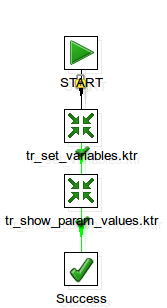
This subjob executes the transformations tr_set_variables.ktr and tr_show_param_values.ktr. In this case, in order to access the parameter values from the parent job, we defined the parameters without values in the job settings:
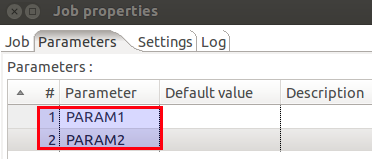
Note: This is just one of the ways you can pass parameters down to the subprocess.

tr_set_variables.ktr
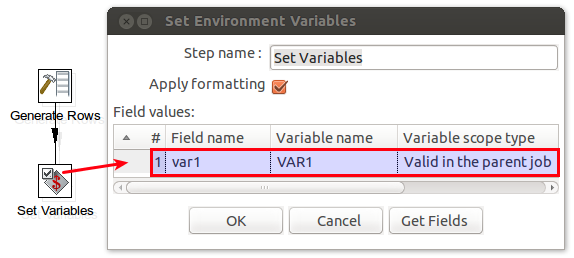
This transformation sets a variable called var1 with scope Valid in parent job so that successive processes can make use if it. In this case the values originate from a Generate Rows step for demonstration purposes; in real world examples you might read in some values from a file or a database table.

tr_show_param_values.ktr
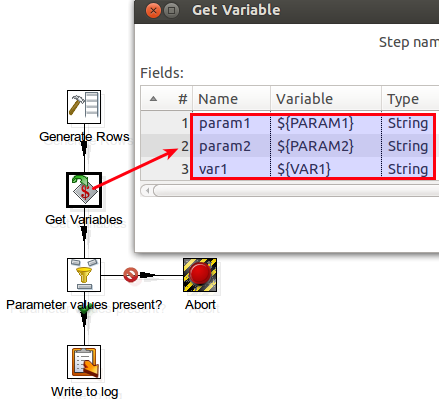
The main transformation has the sole purpose of writing all the parameter and variable values to the log. We retrieve the parameters and variable by using a Get Variables step. We also check if a value is present by using a Filter Rows step. In case one value is missing, we Abort the transformation, otherwise the values are written to the log.


There is no need to set the parameter names in this transformations; there is an advantage though if you do it:
Missing parameter values will be properly displayed as NULL, which makes it a bit easier to check for them.
If you don't define them in the transformation settings, missing parameter values will be displayed as ${PARAMETERNAME}.


Important: Variables coming from tr_set_variables.ktr MUST NOT be listed in the Parameter tab in the Transformation Settings as this overrides the variable.

Making Parameters available for all subprocesses in an easy fashion

As you saw above, defining the parameters for each subprocess just to be able to pass them down can be a bit labour intensive. Luckily, there is a faster way of doing just this:


  1. In the main job specify the parameters that you want to pass in in the Job Settings:
    This way parameters and their values can be passed in from the command line in example.
  2. Right after the Start job entry use the Set Variables job entry. Specify the variable names, reference the parameters you set up in step 1 and set the scope to Valid in the current job.
  3. There is no need to specify any parameters/variables in any of the subprocesses.


To see how this is working, run jb_main.kjb in the passing_down_parameters_in_an_easy_fashion folder (part of the provided examples).

What if I still want to be able to run my subprocess independently sometimes?

You might have some situations, when you have to run the subprocess independently (so in other words: You do not execute it from the parent/main job, but run it on its own). When we pass down parameters or variables, this can be a bit tricky and usually it just doesn’t work out of the box. Luckily, there is a way to achieve this though:
  1. In the subprocess, specify the parameter that you want to be able to pass in. In our example (which is based on the previous example), we modified the transformation tr_show_param_values.ktr and added following parameters to the Transformation Settings:
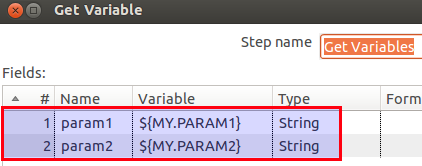
    We also amended the
    Get Variables step to make use of these parameters:
    This way, we can already run this transformation on its own. Now we only have to adjust the parent job so that we can run it from there as well.
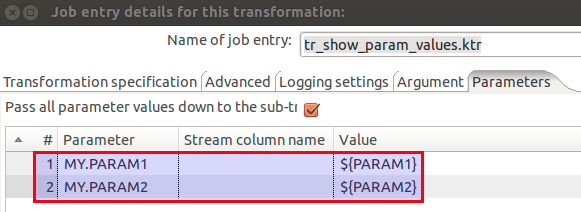
  2. In the parent job, in the Job or Transformation job entry settings, go to the Parameters tab and tick Pass all parameter values down to the sub-transformation/sub-job. Next, as the Parameter set the name of the parameter you defined in the subprocess. As the Value define the variable that you want to pass down: ${variable}. This assumes that this variable was set beforehand by some Set Variables job entry/step.
    In our case, we modified transformation job entry in the job
    jb_slave.kjb and added following mapping to the job entry settings in the Parameters tab:
A sample for this setup is provided in the mulitpurpose_setup_allow_individual_execution_of_subprocesses folder.

Closing remarks


Using parameters and variables in Kettle jobs and transformations allows you to create highly dynamic processes. I hope this tutorial shed some light onto how this can be achieved.

Read More
Posted in "Pentaho Data Integration", "Pentaho Kettle", Parameter, Variable | No comments

Monday, 17 June 2013

How to work with MapReduce Key Value Pairs in Pentaho Data Integration

Posted on 11:08 by Unknown

How to work with MapReduce Key Value Pairs in Pentaho Data Integration

My main objective for this article is to provide you an understanding on how to use multiple fields to group by and multiple fields to aggregate on in Pentaho PDI MapReduce.


The input key for the mapper is auto-generated, the value is usually the line of text which is read in (fields separated by comma in example). This section here will focus on the output key value pair of the mapper and input and output key value pair of the reducer. Also we will not discuss the simple scenario where we only use one field for the key and one field for the value.


I have more than one key field. How do I set up a compound key?


You are aware that the input and output of the mapper and reducer are key value pairs. If you haven’t been exposed that much to the internals of MapReduce and come more from a traditional ETL world, this is probably one of the most important concepts to understand.
Did you ever run a Hive query? Did you have to worry about the key fields … no. Hive is doing quite some work in the background … which some users are never exposed to. So when you come to PDI and create the key for your mapper and reducer transformations, the important point is that you have to separate the fields that form the key by the standard separator of the specified output format of the MapReduce job. If you chose the output format org.apache.hadoop.mapred.TextOutputFormat, tab is the standard separator.


Option 1: Thankfully Pentaho introduced not too long ago a step to just do this in an easy fashion: Use the new Concat Fields step (Wiki entry). This step allows you to create a new field based on several concatenated source fields which are separated by a character of your choice, such as a tab. If you specified the org.apache.hadoop.mapred.TextOutputFormat in the Pentaho MapReduce job entry as output format, tab is the standard separator.


Warning: http://wiki.pentaho.com/display/EAI/Concat+Fields
“4.4.0 release note: Unfortunately we found an issue (PDI-8857) with this step that was too late to incorporate into 4.4.0. The step adds carriage return and line feed to the fields it creates. Workaround is to use the String operations step with the option "carriage return & line feed" after the step or to enable the advanced option "Fast data dump (no formatting)"


Option 2: Use a User Defined Java Expression step. This option was mainly used before the Concat Fields step was available. Generate the output key by writing some Java expression which concatenates the fields you want to group by.
Separate the fields with a tab in the concatenate output key, in example:


date + '\t' + brand


Important: Replace the tab with a real tab! So it should look like this then:


date + ' ' + brand


This way, all the fields will be properly separated in the final output. Tab in this case is the standard separator of org.apache.hadoop.mapred.TextOutputFormat.


I have more than one value field. How do I create a compound values field?
What if I want more than one value to aggregate on?


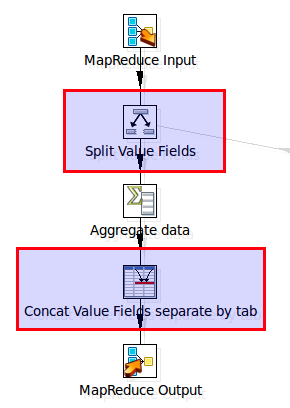
Create a new field i.e. called output_values in a Concat Fields or User Defined Java Expression step in the mapper transformation and concatenate all the values and define the separator. Then in the reducer split these values (use the Split Fields step), next aggregate them (use the Group By step) and after this you have to concatenate them again (use the Concat Fields step).


Let’s walk through a very simple example. We have some sales data which we want to analyze. Let’s say we want the sum of sales and a count of rows by date and brand.


The Kettle job:


Our input data for the Pentaho MapReduce job looks like this (date, brand, department, sales):


$ hadoop fs -cat /user/dsteiner/sales-test/input/sales.txt
2013-04-01,SimplePurpose,Clothes,234.2
2013-04-01,SimplePurpose,Accessories,2314.34
2013-04-01,RedPride,Kitchen,231.34
2013-04-02,SimplePurpose,Clothes,453.34
2013-04-01,SimplePurpose,Accessories,5432.34
2013-04-01,RedPride,Kitchen,432.23
2013-04-03,RedPride,Kitchen


The mapper transformation (simple example):
If we want to inspect what the output of the mapper transformation looks like, we can just simply execute the Pentaho MapReduce job entry without specifying a reducer.


Output of mapper - Note the key is formed by the first two fields which are separated by a tab and the value is formed by the sales and count field separated by a comma:


$ hadoop fs -cat /user/dsteiner/sales-test/output/part-00000
2013-04-01 RedPride 231.34,1
2013-04-01 RedPride 432.23,1
2013-04-01 SimplePurpose 234.2,1
2013-04-01 SimplePurpose 2314.34,1
2013-04-01 SimplePurpose 5432.34,1
2013-04-02 SimplePurpose 453.34,1
2013-04-03 RedPride ,1


The reducer transformation (simple example):


Our output data looks like this (date, brand, sum of sales, count):
$ hadoop fs -cat /user/dsteiner/sales-test/output/part-00000
2013-04-01 RedPride 663.57 2
2013-04-01 SimplePurpose 7980.88 3
2013-04-02 SimplePurpose 453.34 1
2013-04-03 RedPride 0 1


So you can see that we successfully managed to aggregate our data by date and brand and sum up the sales as well as perform a count on the rows.

It’s best if you take a look at my sample files (which you can download from here) to understand all the details. I hope that this brief article shed some light onto creating key value pairs for the Pentaho MapReduce framework.

Read More
Posted in "Hadoop", "Pentaho Data Integration" | No comments

Friday, 24 May 2013

Pentaho Report Designer: How to show the parameter display name in your report when it is different from the parameter value

Posted on 10:47 by Unknown
One of my blog's readers just asked me quite an interesting question: How can I show the parameter display name in my Pentaho report if it is different from the parameter value?


Note: Just to clarify, the scenario covered here is when the parameter value and display name are different. So in example when you set the parameter value on an id field and the name on the descriptive field. Because if parameter value and display name are set to the same field, then you can simply drag and drop the parameter name onto your report.


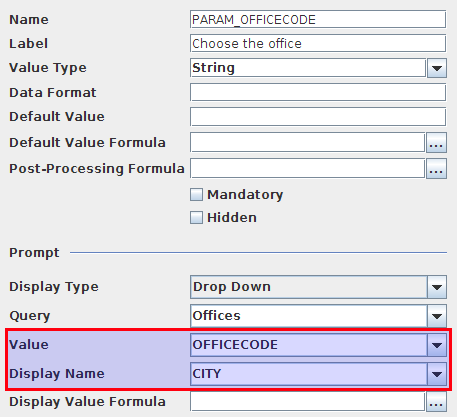
So in our case we defined a parameter called PARAM_OFFICECODE. We set the Parameter Value to OFFICECODE (which happens to be an id) and the Parameter Display Name is set to CITY. We want to use the OFFICECODE to constrain the result set of our main report query (in our case this works better because there happens to be an index on this database table column).

In the report we would like to show in the header the selected office name (CITY) ... but how do we do this? We can not just simply drag and drop the PARAM_OFFICECODE element onto the report header, because it would only display the id (OFFICECODE) and not the display name (CITY).

You might think there should be an easy solution to this … and right you are. It’s just not as easy as it could be, but quite close …


So I quickly put together a bare bone example (don’t expect any fancy report layout … we just want to see if we can solve this problem):


Our parameter:
So if we placed this parameter element on the main report, we would just see the OFFICECODE when we ran the report. So how do we get the display name?


  1. If it is possible to access the name field (in our case CITY) via the SQL query, we could change our main report SQL query and add it there as a new field. But this is not very efficient, right?
  2. We could create a new query which takes the code/id (in our case OFFICECODE) as a parameter and returns the name (CITY) and then run this query in a sub-report which could return the value to the main report (this is in fact what you had to do some years back). Well, not that neat either.
  3. Here comes the savior: The SINGLEVALUEQUERY formula function. You can find this one in the Open Formula section. Thomas posted some interesting details about it on his blog some time ago.


Basically for a very long time we had the restriction that we could only run one query to feed data to our report. With the SINGLEVALUEQUERY and MULTIVALUEQUERY formula functions you can run additional queries and return values to the main report.


So here we go … to retrieve the display value:
  1. We create an additional query called ds_office_chosen which is constrained by the code/id and returns the (display) name: SELECT city AS office_chosen FROM offices WHERE officecode = ${param_officecode}
  2. We create a new formula element called formula_office_chosen and reference the query ds_office_chosen: =SINGLEVALUEQUERY("ds_office_chosen")
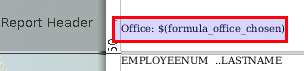
  3. We can now use formula_office_chosen in our report:


Once this is set up, we can run the report and the display name of the chosen parameter value will be shown:
My very simple sample report can be downloaded from here.
Read More
Posted in "Pentaho Report Designer", Parameters | No comments

Friday, 17 May 2013

New London Pentaho Usergroup meetup

Posted on 10:30 by Unknown
It's been a long time since the last London Pentaho Usergroup meeting happened, so it's good to see that Dan Keeley and Pedro Alves are trying to bring new life into the Usergroup by organizing a new meetup. So if you live in or around London or happen to visit London on the 20th of June,  make sure you stop by (details here on the Meetup website).
It's a great opportunity to get to know key members of the Pentaho Community as well as supporters and fans and to share your ideas with them.
Matt Casters, the founder of Kettle, will be presenting how to use Pentaho Kettle (PDI) to create MapReduce jobs via an easy to use graphical interface. It's unique opportunity to learn about this!
So I hope I see some of you there and have an interesting discussion about data integration, business intelligence etc with you!
Read More
Posted in | 1 comment
Newer Posts Older Posts Home
Subscribe to: Posts (Atom)

Popular Posts

  • Pentaho Data Integration: Remote execution with Carte
    Pentaho Data Integration: Remote execution with Carte Tutorial Details Software: PDI/Kettle 4.1 (download  here ), installed on your PC and ...
  • Pentaho Data Integration: Scheduling and command line arguments
    Pentaho Data Integration (Kettle): Command line arguments and scheduling Tutorial Details Software: PDI/Kettle 4.1 (download here ), MySQL S...
  • Pentaho PostgreSQL Bulk Loader: How to fix a Unicode error
    When using the Pentaho PostgreSQL Bulk Loader step, you might come across following error message in the log: INFO  26-08 13:04:07,005 - Po...
  • Pentaho Data Integration: Best practice solutions for working wit
    Pentaho Data Integration: Best practice solutions for working with huge data sets Assign enough memory Open pan.sh and kitchen.sh (and spo...
  • Using Parameters in Pentaho Report Designer
    Using Parameters in Pentaho Report Designer Introduction How to define a parameter Additional info about the new parameter dialog Hidden Par...
  • PDI: Full Outer Joins
    Pentaho Data Integration: Full Outer Joins Creating full outer joins in Pentaho Data Integartion (PDI aka Kettle) is a fairly straight forwa...
  • Pentaho Data Integration and Infinidb Series: Bulk Upload
    Pentaho Data Integration and InfiniDB Series: Bulk Upload Introduction Prepare Tables Using mainly Kettle steps Check if file exists Setup I...
  • Pentaho Kettle Parameters and Variables: Tips and Tricks
    Pentaho Kettle Parameters and Variables: Tips and Tricks This blog post is not intended to be a formal introduction to using parameters and ...
  • Using regular expressions with Pentah...
    Using regular expressions with Pentaho Data Integration (Kettle) There are quite some transformations steps that allow you to work with regu...
  • Pentaho Data Integration: Designing a highly available scalable s
    Pentaho Data Integration: Designing a highly available scalable solution for processing files Tutorial Details Software : PDI/Kettle 4.1 (do...

Categories

  • "Bulk Loader"
  • "Bulk Loading"
  • "Hadoop"
  • "Kettle"
  • "Pentaho Book"
  • "Pentaho Data Integration"
  • "Pentaho Kettle"
  • "Pentaho Report Designer MDX MQL JDBC Parameters How To"
  • "Pentaho Report Designer MDX Parameters"
  • "Pentaho Report Designer MQL Parameters"
  • "Pentaho Report Designer Parmaters"
  • "Pentaho Report Designer"
  • "Pentaho Reporting 3.5 for Java Developers"
  • "Pentaho Reporting Book"
  • "Routing"
  • "Schema Workbench"
  • "Testing"
  • "Unicode"
  • "Unit testing"
  • "UTF8"
  • Agile development
  • automated testing
  • Big Data
  • Book Review
  • C-Tools
  • CBF
  • Clustered transformation
  • Command Line Arguments
  • Community Build Framework
  • D3JS
  • Dashboarding
  • Data Integration
  • Data Warehouse
  • Database Change Management
  • Database Version Control
  • Date Dimension
  • DBFit
  • ETL
  • ETLFit
  • Federated database
  • Google Charts
  • Google Visualization API
  • Hadoop
  • HTML5
  • iReport
  • JasperReports
  • JasperSoft
  • JasperStudio
  • Kettle
  • Kimball
  • Loop
  • Master data management
  • Metadata
  • Metedata editor
  • Mondrian
  • multidimensional modeling
  • OLAP
  • Open Source
  • Parameter
  • Parameters
  • Pentaho
  • Pentaho BI Server
  • Pentaho Data Integration
  • Pentaho Data Integration 4 Cookbook
  • Pentaho Kettle
  • Pentaho Metadata Editor Tutorial
  • Pentaho Report Designer
  • PostgreSQL
  • PRD
  • Report Layout
  • REST
  • Routing
  • Saiku
  • Scheduling
  • Slowly Changing Dimension
  • Sqitch
  • SVG
  • Talend
  • Talend MDM
  • Talend Open Studio
  • Tutorial
  • Variable
  • Web service
  • Xactions

Blog Archive

  • ▼  2013 (24)
    • ▼  December (2)
      • Pentaho 5.0 Reporting by Example: Beginner’s Guide...
      • Going Agile: Test your Pentaho ETL transformations...
    • ►  November (3)
    • ►  October (2)
    • ►  September (1)
    • ►  August (3)
    • ►  July (2)
    • ►  June (1)
    • ►  May (2)
    • ►  April (1)
    • ►  March (3)
    • ►  February (1)
    • ►  January (3)
  • ►  2012 (20)
    • ►  November (3)
    • ►  October (3)
    • ►  August (1)
    • ►  June (1)
    • ►  April (1)
    • ►  March (3)
    • ►  February (5)
    • ►  January (3)
  • ►  2011 (19)
    • ►  November (3)
    • ►  July (2)
    • ►  June (1)
    • ►  May (4)
    • ►  April (2)
    • ►  March (1)
    • ►  February (3)
    • ►  January (3)
  • ►  2010 (17)
    • ►  December (1)
    • ►  November (6)
    • ►  September (1)
    • ►  August (1)
    • ►  June (2)
    • ►  May (1)
    • ►  April (3)
    • ►  February (1)
    • ►  January (1)
  • ►  2009 (18)
    • ►  December (3)
    • ►  November (1)
    • ►  October (5)
    • ►  September (7)
    • ►  July (2)
Powered by Blogger.

About Me

Unknown
View my complete profile